Blog Art
Hey divas! Welcome to my tutorial. Here, you will see my workflow and how I get my videos from the image on the top to the image on the bottom. Let’s get this started!
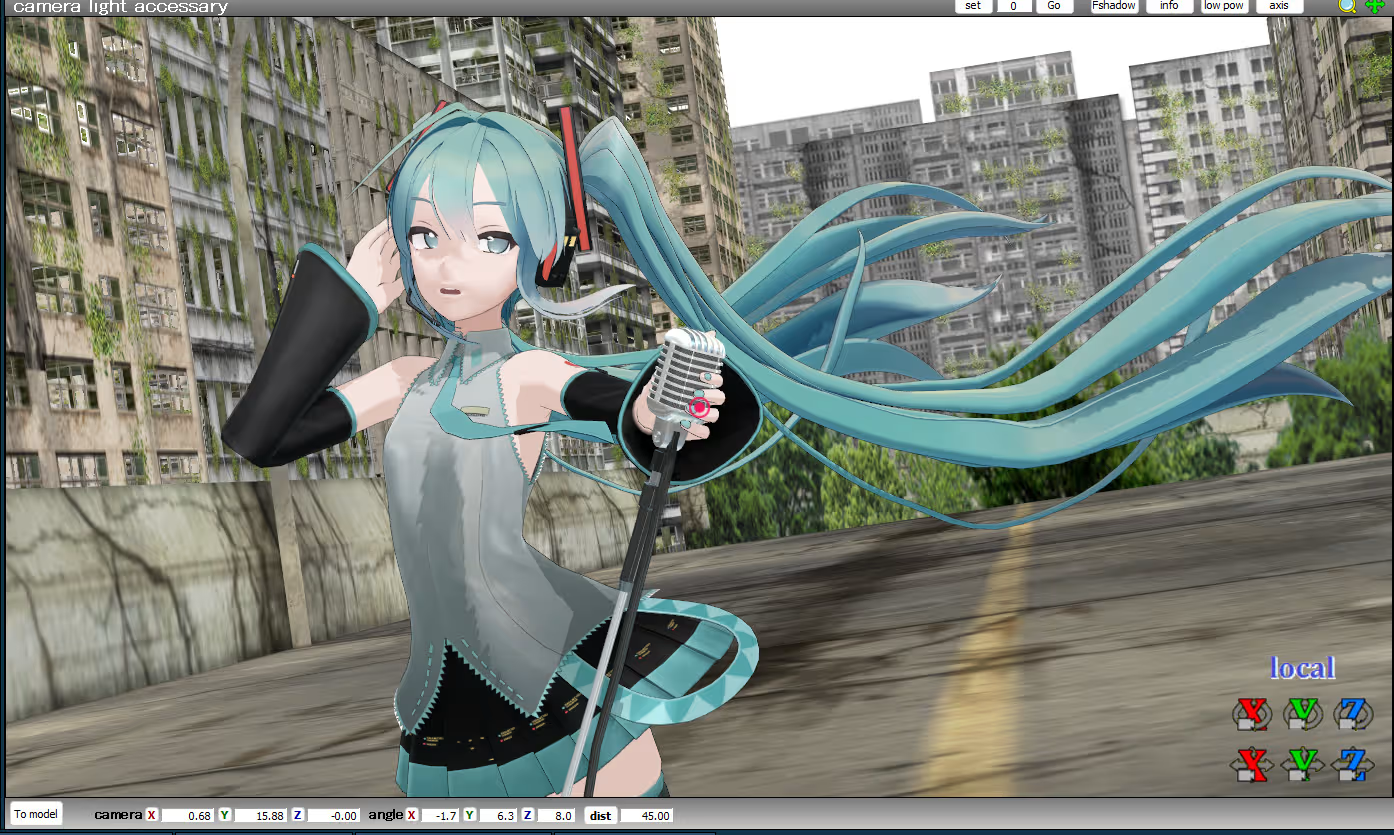
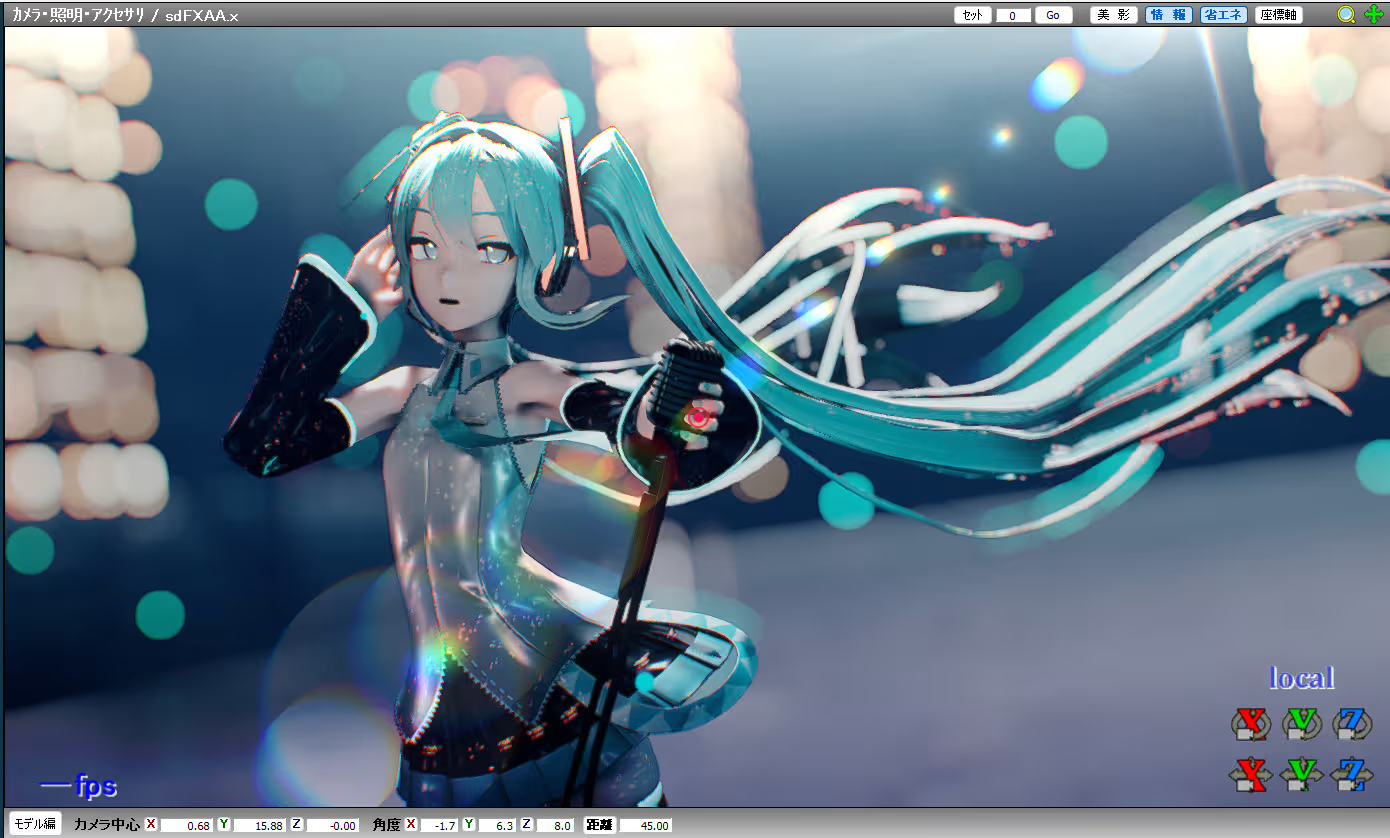
Step 1: Planning
Probably one of the most crucial steps in a video by far. This may seem like a “duh,” but trust me—you need to think carefully about how you want your video to look and what fits your vision. Every detail matters, down to even the song you use. My order of planning goes as follows:
- Song Motion & Camera
- Video
- Model
- Stage & Overall Scene
I usually try to have everything fit the vibes of the song i get. for example, my video with haruna uses the song märchen star, which gave me a dreamy vibe. this in turn caused me to make my scene look more fantasy-like. my video with miku uses the song プレイ, which gave me a futuristic vibe from it. i recommend looking at images on pinterest so you can get the feel of what you want.
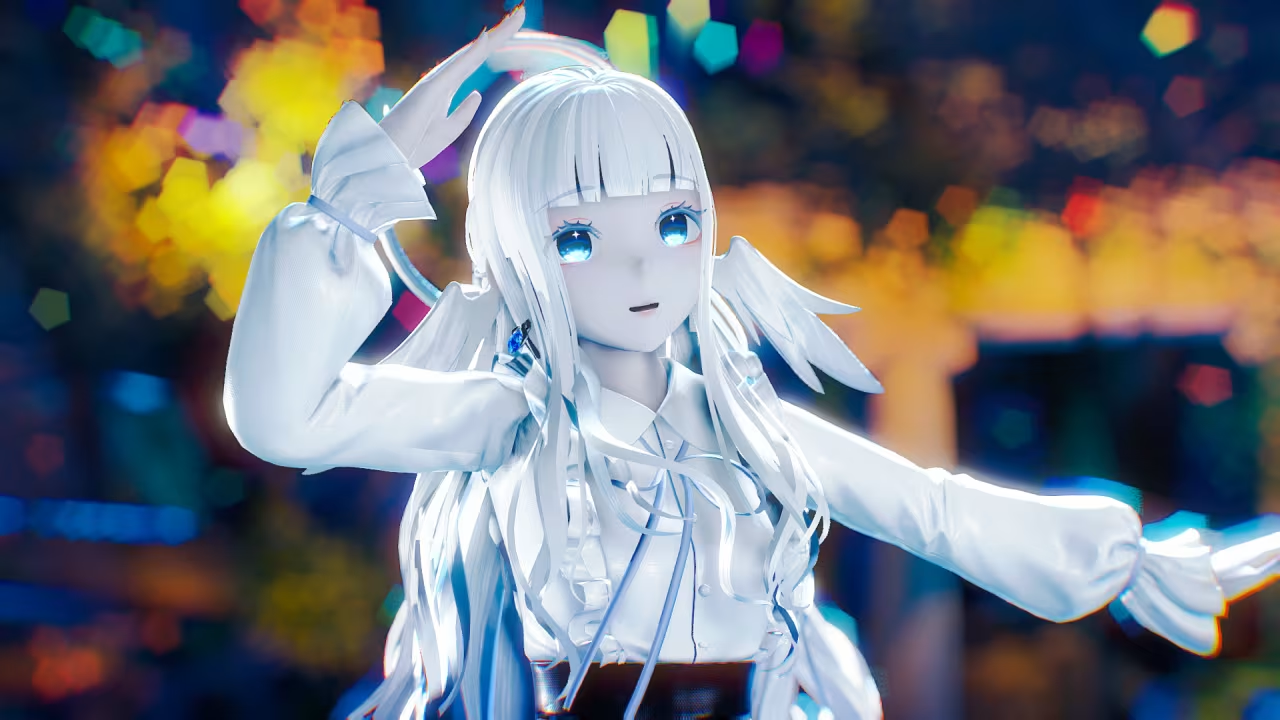
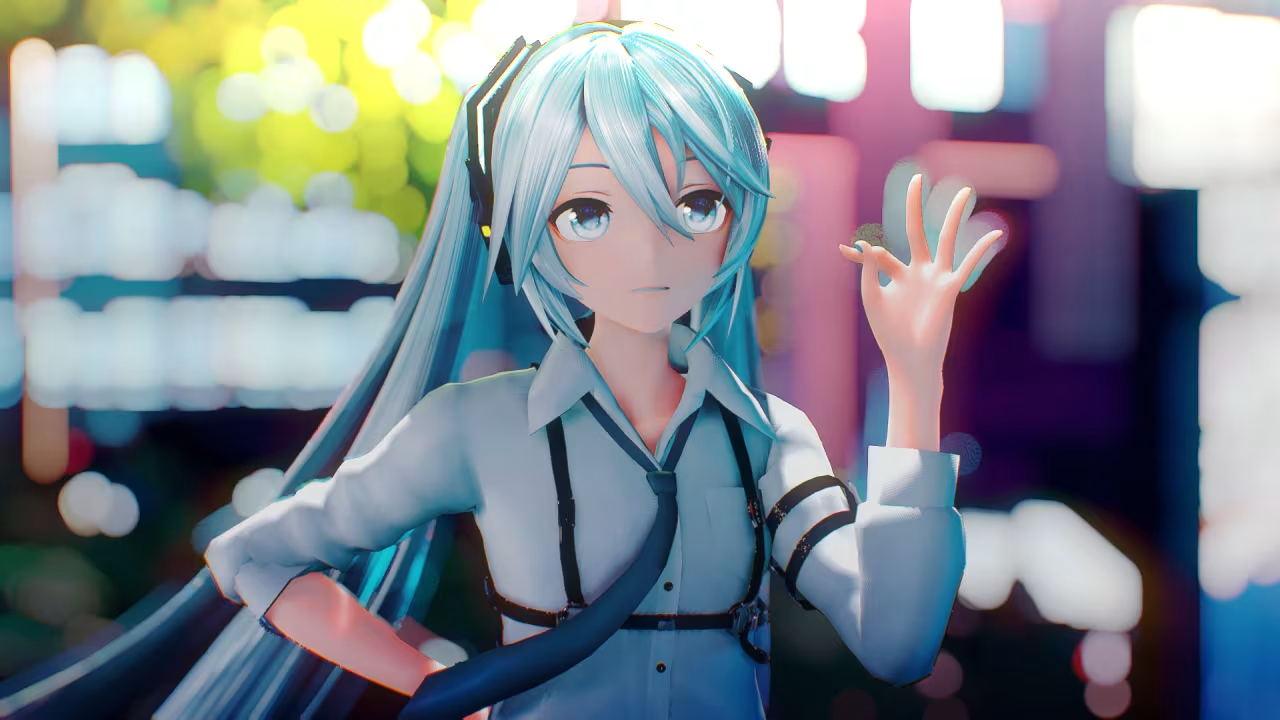
You don't have to follow my workflow. remember that in the end, it's your video. you get to decide on what you want there.
Step 2: Building the Scene
This part is the most time consuming part, but mainly because I heavily overthink things lol. I kid you not, I can find a model that fits perfectly, but then it's the stage that gives me a stroke. Sometimes it's the other way around. Normally, MMD creators such as Laine or Dendewa use Blender stages and port it themselves not Laine, he makes other people port it for him. However, I'm assuming that you don't know how to do that, so you'll probably be relying on Aplaybox or BowlRoll. There isn't really a set way on how to do it other than just throwing things in your scene and moving it until it looks good. Remember that your scene shouldn't look really busy if you want your viewer to focus on your models, so be cautious when building it up.
- Note: When loading in the motions, I normally load it at frame 1 so frame 0 can be the test frame for me to set everything up. Remember to have the start frame at 1 when rendering.
Step 3: Effects
This is what will make and break your video, so lock in on this part.
Main Shader
Nothing really crazy to say about this one. I called it the main shader because you may use this for something like MStoonCoordinator or like SDPBR. You load it in like normal with all the pre-requisites needed for it to work. For this tutorial, I'll be talking as if you are using Raycast.
Configuring Your Shader
Most of the time, your shader will have a config file that you can edit so your shader can look a certain way. Additionally, there are Raycast mods out there that can change the look of it. I normally use a lot of mods for my Raycast, as well as editing some parts of the code. However, you can just edit your ray.conf file to how you please.
-
SUN_LIGHT_ENABLE
The base value is 1, meaning that it is enabled. I have it set to 2, which is sun radiance calculated from solar zenith angle. This means the sunlight will change color and intensity based on how high or low the sun is in the sky. If you want your sunlight to be constant, keep it at 1. -
SUN_SHADOW_QUALITY This changes the quality of your sun shadows. Think of it like the self shadow manipulation slider in MMD. Normally, it is set to 3. I keep it at 3 since anything higher will put significant work on your CPU. If your computer is struggling, lower the number until you can handle it. Do not set it to 0, or you will remove your sun shadow.
-
IBL_QUALITY
Image based lighting is a 3D rendering technique that uses a panoramic image (in this case your skybox) to light and reflect your scene. You can't turn this off at all. The base value is 1, but you can set it to 2 if you want the UV to be flipped. -
FOG_ENABLE
Self explanatory — this controls whether fog is enabled or disabled. It is enabled by default. -
MULTI_LIGHT_ENABLE
Also self explanatory — this controls the lights in your scene. It is enabled by default. -
OUTLINE_QUALITY
This controls the outlines of your models. By default, it is disabled. However, you can enable it with different anti-aliasing effects added. I normally set it to 3 in case I want to use it with toon materials. If you want it on but don't want to see it, you can change the edge line of your model in MMD or turn it off in the outline tab in MME. -
TOON_ENABLE
This enables or disables toon material support. It is disabled by default but can be turned on. There are two options when enabling it: without diffusion (1) and with diffusion (2). Do not set it to 2 — it will break effects like kirakira. -
SSDO_QUALITY
Screen space directional occlusion improves upon SSAO by considering incoming light direction, creating softer shadows and more depth at the cost of performance. By default it is 2 (12 samples). I normally push it to the highest setting. -
SSR_QUALITY
Screen space reflection calculates visible screen data to create realistic reflections. It is disabled by default. I normally set it to the highest setting and edit another file to push it to 256 samples. You can find this inshader/postprocessssr.fxsuband editssr_sampler_countto be a multiple of 2. -
SSSS_QUALITY
Screen space subsurface scattering simulates light penetrating translucent materials like skin, leaves, or wax. This helps prevent materials from looking like hard plastic. It is enabled by default. -
BOKEH_QUALITY
Bokeh and depth of field work together. Bokeh is the aesthetic blur quality in out-of-focus areas, while depth of field is the sharp focus range. It is disabled by default. I usually keep it off and use a separate DOF effect for more control. -
HDR_EYE_ADAPTION
Eye adaptation simulates how human vision adjusts to different lighting levels. In Raycast, this will darken or lighten your scene automatically. It is disabled by default. -
HDR_BLOOM_MODE
Bloom simulates the hazy glow produced by intense light sources. It is enabled by default with a value of 4. Lower values are mainly for compatibility with older Raycast versions. -
HDR_LENSFLARE_QUALITY
Lens flare simulates optical artifacts from strong light entering a camera lens. It is disabled by default. I usually keep it off to avoid unwanted visuals. -
HDR_STAR_MODE
Glare stars simulate star-shaped streaks from very bright light sources. It is disabled by default but can be enabled with different options, including anamorphic streaks. -
HDR_TONEMAP_OPERATOR
Tone mapping adjusts brightness and contrast. The default is Hejl2015. If you have Dendewa’s tonemaps, you get more options. I normally use the Unreal tonemap from that mod. -
AA_QUALITY
Anti-aliasing smooths jagged edges. The default is FXAA (fastest), but you can switch to SMAA with higher quality levels. I keep the default since I use a post effect. -
POST_DISPRESION_MODE
Dispersion spreads RGB channels, similar to chromatic aberration. By default it is 1 (color shift). I normally set it to 2 for chromatic aberration.
Lighting
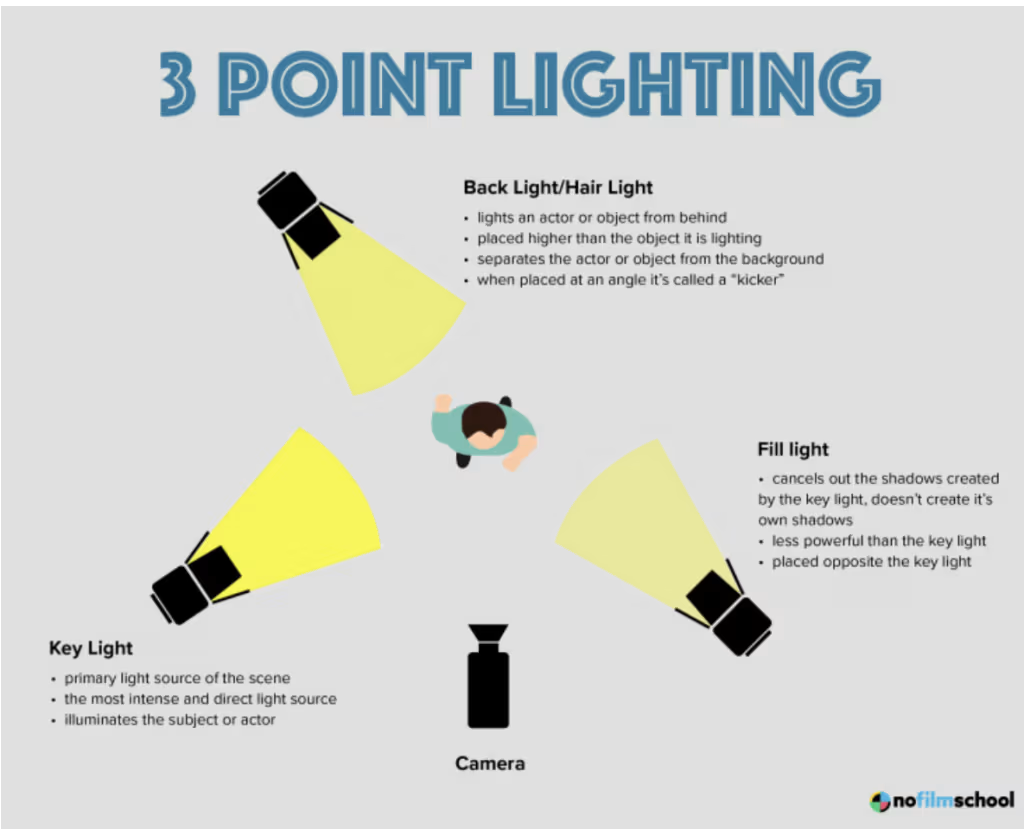
There are multiple methods when it comes to getting the lighting you want. There is no “definitive” answer to getting the lighting you want, and it’s all up to personal preference. For example, if you are into more flatter shading, then you would go for DirectionalLight. If you want more prominent shadows, you would use a three-point lighting setup with spotlights. This is where you can have more control with the colors of your scene depending on the vibe you want.
In my videos, I use a lot of spotlights in my scene that kinda works like a three-point lighting setup. I then parent it to a lightbone for it to follow the model. My lightbone has multiple bones corresponding to the motherbone, groove bone, and center bone. The motion that you use for your video is loaded onto it with the rotation removed and optionally the Y move values removed. My lighting mainly consists of a base lighting consisting of a color I want, a side lighting with a color that makes my model look not as boring, and a bright back lighting.
Materials
Materials are my joy of making a video, especially on the model. Loading it on and watching it turn from a bleak, plain model to one with depth and dimension brings me joy. I usually make my own materials when there isn’t one I can use. There are multiple tutorials out there that can help you with making it, but when making the map files, I recommend ShaderMap since it gives you normal, specular, and displacement maps based on the image you choose.
When inputting materials, there are some parts of the models I have set materials for. One example is the eyes of the model. I normally have the iris have an emissive of 0.3~0.5, the highlights at the regular 1x emissive, and the scleras at an emissive of 0.3. When making certain materials emissive, like LED lights on the model, I usually use some sphere lights or point lights to make those parts feel like they are actually glowing.
Fog
Fog helps make sure your model is the focal point. I normally use volumetricsphere with a range above 3 and intensity at around 0.8~1.0. Normally, it’s a dark color or pitch black. Just adjust it to how you see fit. If you aren’t using Raycast, you can use an effect like iksunshaft to get a similar effect.
Color Grading
This is where I add in effects like ikclut. I normally use ikclut_rc by RedialC and DDLL 2.4 by Dendewa. I use a lot of these and change the transparency of it. After loading them in, I edit things like the lighting to fit my vision even more. You can also use the Ray Controller to edit the colors of your video. There is also a color grading effect from Rui, but from what I’ve seen, it doesn’t work for me. Again, there is no definitive “best practice” on what colors you should do for your videos, because that will vary from scene to scene. It’s best to look at moodboards based on your vibe to get the feel that you want, or look at photography based on your scene.
Other Scenic Effects
I normally add this when I have everything set up due to how heavy some of the effects can be. There are multiple effects you can choose from that can fit your video. Some that I recommend are kirakira, fireflies_spectrum, and ikparticles. Play around with what fits your video.
Depth of Field
You can skip this step if you use the built-in Raycast depth of field. However, I recommend using ikbokeh since, again, having more control is key. I recommend parenting the .x file to the model’s head bone and turning the front bokeh and emphasis sliders all the way up in the controller. If you have multiple models, it will be more difficult to control it, but whatever model is the main view/focus will have the .x file parented to them. That will change for each camera shift.
Motion Blur
Motion blur is put here because it’ll look off if it’s put anywhere else. I normally use a mod of MotionBlur by Ikeno since it has an effect that makes static objects only get affected by the camera movement. This can be good for high poly models since MotionBlur cannot handle that well. Depending on the frame rate you use, you’ll have to edit the size of the .x file to how you see fit. Higher frame rates would demand a bigger size, while smaller frame rates would demand a smaller size. I normally keep it at its default settings since it works well with my frame rate.
Bloom
I use bloom to add more of a glowing feel for bright areas. It is best practice to not set the threshold to anything that is really high, since it can make everything look blurry and washed out in a way. However, if the scene needs that dreamy feel, you can do that. Again, play around with the intensity of the bloom.
More Color Effects
This is where I use effects like msgradation for my video. I normally use a dark blue at the bottom and a light yellow at the top. Play around with it to get the feel you want, since you have three different gradation .x files you can use.
Lens Flare
I really like lens flares when it’s needed. I normally use the OpticalFlares “sun flare circle bokeh 1” effect and use either the “by sun” file if the sun is visible in my scene, or the “by bone” file if there is a lighting I like but I want to make it seem like the sun is behind the model. Again, there are multiple files you can play around with to get what you want. If you want to change the transparency of the model, change the size of the .x file.
Final Post Processing Effects
This is where I add effects like unsharpmask and anti-aliasing. If there are any other visuals I want to add that affect things like color, noise, lines, grain, etc., I’ll add them at this time. I usually add sdfxaa, unsharpmask, and then sdfxaa again. You don’t have to do this, but I personally like it. This will also be the time to adjust all the other effects if something doesn’t fit your taste.
Step 4: Quality Checking
This is the part where you need to really lock in and make sure there isn’t anything you don’t want to see. This is also the part where you will hide stuff in the MME window. Hide every light model in every tab but the lightmap tab. Hide every controller in all tabs. Be sure that anything you don’t want affected by the depth of field and motion blur is hidden in those tabs too. They will show up in the final render if not hidden, and it will look bad. Remember that you gotta double check, triple check that you like how it looks, because rendering will take a lot of time.
Step 5: Rendering
You are on the final stretch! Decide on what you want your video size and frame rate to be. Normally, I use 1920x1080 with 30fps, but sometimes I’ll use 2560x1080 if needed "i.e. collabs". Choose what you want based on your computational power and patience. A 1920x1080 video takes about an hour or less for me, while a 2560x1080 takes around 2~3 hours. Choose what you can handle.
Final
And there you have it! You now have an MMD video. Remember that there are multiple tutorials out there, and you can pick and choose techniques that you personally like. Play around with effects, lighting, and color until you get something that you like. I will be listing some resources you can use that can help with your video making journey. Happy MMDing!
Resources
Explore DENDEWA LAB latest projects and innovations. Join us and grow together.